LinkBuds Clip (WF-LC900) | Using tap controls
When you want to pause music, skip tracks, or use your voice assistant, reaching for your smartphone or other device every time can be inconvenient.
In this guide, we’ll show you how to control these functions using your earbuds and the Sony | Sound Connect app.
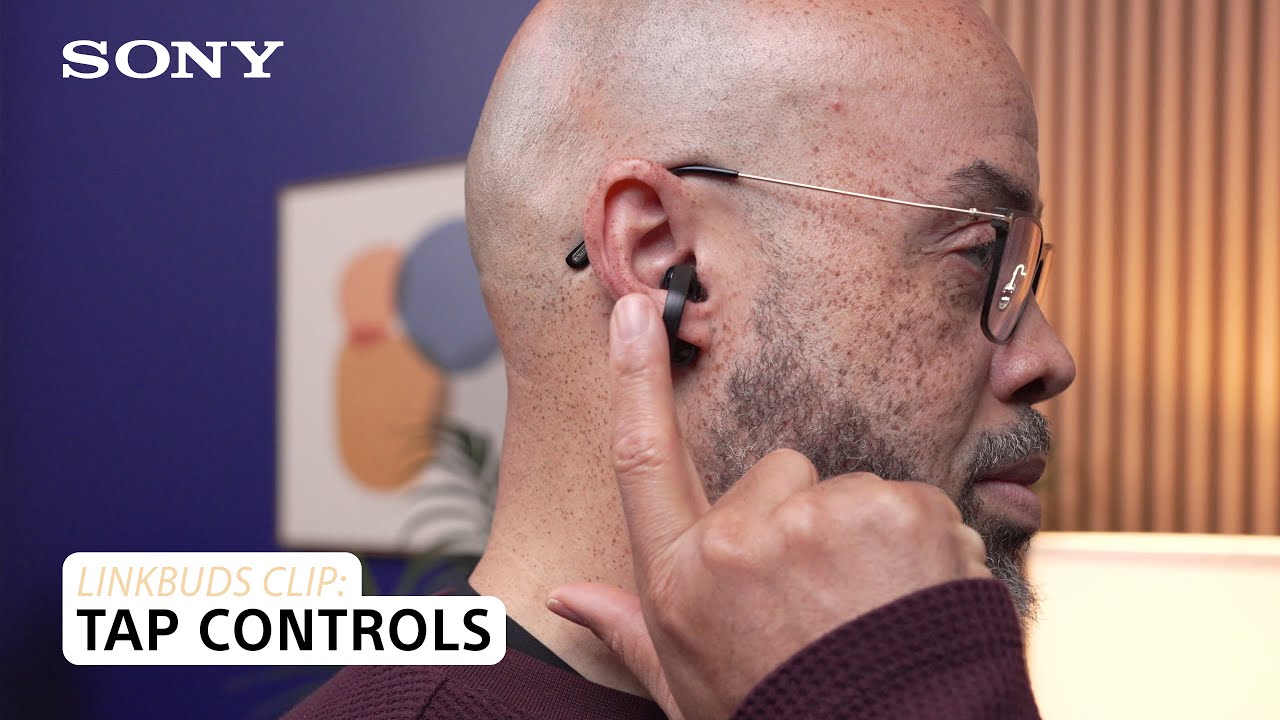
Default tap controls
By default, the following tap controls are set for the L (Left) and R (Right) earbuds.
| L (Left) side | R (Right) side | |
| Tap twice |
|
|
| Tap three times |
|
|
| Tap five or more times |
|
|
*Requires setup in the Sony | Sound Connect app.
Customise the tap controls
You can change the tap controls in the Sony | Sound Connect app to set them up in the way that works best for you.
Open the Sony | Sound Connect app and follow the steps below:
- Select Device settings in the My Device tab.
- Tap Controls.
- Tap the > (right-facing arrow) next to Change the tap operation function.
- Tap the L (Left) or R (Right) tab to change the tap controls for that side.
Register your product
Get access to all information, keep your product up to date and enjoy great deals
Sony Community
Visit our Community and share your experiences and solutions with other Sony customers
Contact support
Contact your Sony Support team
Repair, Warranty & Spare Parts
Book, track or maybe even avoid a repair
Support by Sony (Mobile App)
Never miss an update again! Find information and receive instant notifications about your product

