The headphones do not turn on (WF-C510)
Follow these steps to troubleshoot this issue:
Before you start
Use dry cloth or cotton swab to clean the charging port. For details on how to clean the headphones, refer to the How to care for the headphones article.
Note: Do not use an air duster to remove dust or foreign substances. Dust and other debris may enter the sound output holes and cause a malfunction.
Solution
Hint: After the issue is resolved, update the headphones' software to the latest version.
-
Set the headphones in the charging case, and check the status of the indicator on the charging case.
- The indicator repeatedly flashes orange at intervals of about 1 second while charging the headphones or the charging case.
If you see this, an error occurs while charging. Go to the next troubleshooting step.
The indicator repeatedly flashes orange at intervals of about half a second while charging the headphones or the charging case.
If you see this, an error occurs while charging. Go to the next troubleshooting step.
-
Refer to the How to reset or initialize the WF-C510 article or view the How to reset video below:

If your headphones model does not appear in the Bluetooth device list, disable and reenable Bluetooth in the source device, or leave the Bluetooth setting once and return to try the connection again.
- The issue is resolved.
- The issue may have been caused by a temporary malfunction of the headphones.
- The issue is not resolved.
- Go to the next troubleshooting step.
- Wear the headphones and check if you can hear a notification or voice guidance corresponding to the operation and status.
- I can hear the notification or voice guidance from the headphones.
- Cleaning the charging ports or charging the headphones may have resolved the issue.
- I cannot hear the notification or voice guidance from the headphones.
- Go to the next troubleshooting step.
- Check the Notification & Voice Guide setting:
- Open the Sony | Sound Connect app.
- In the My Device tab, select Device settings, select System tab, check the Notification & Voice Guide setting.
- The Notification & Voice Guide is set to On.
- The charging may have failed. Refer to The headphones do not charge article.
- The Notification & Voice Guide is set to Off.
- After setting it to On, go back to step 3.
-
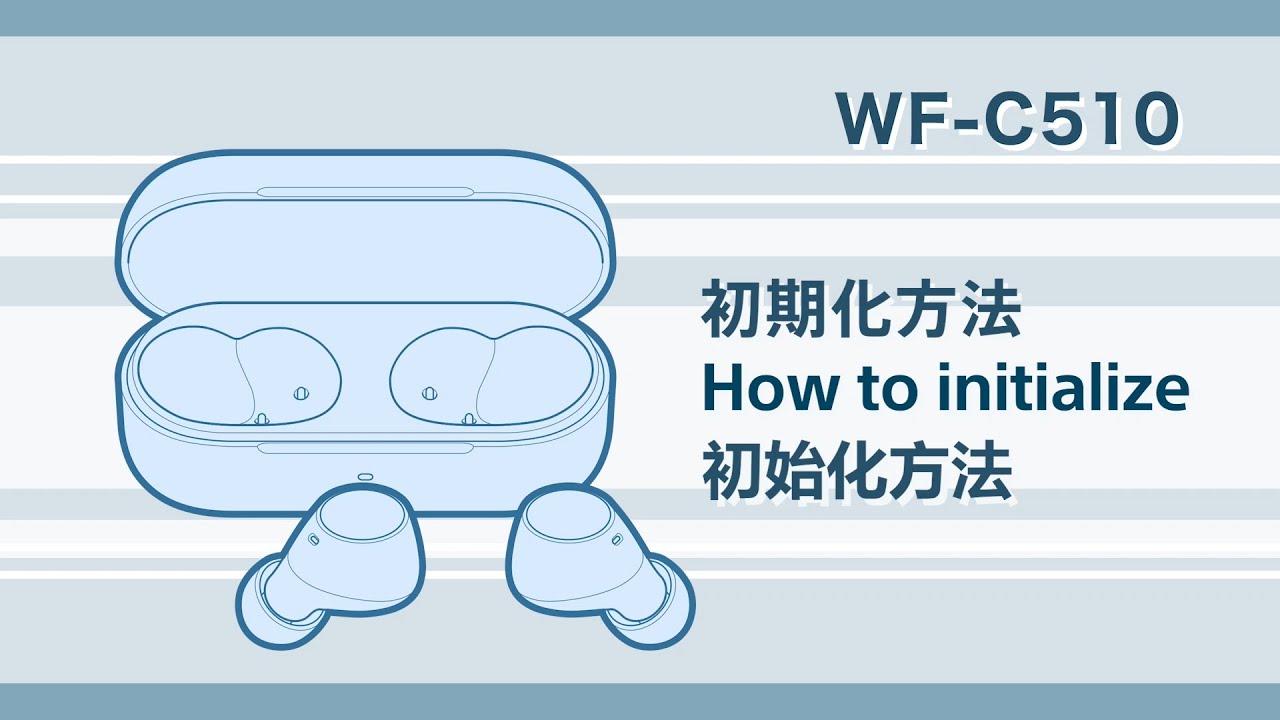
Initialization returns the headphones to the factory settings and all Bluetooth pairing information is deleted.
Refer to the How to reset or initialize the WF-C510 article or view the How to initialize video below:
- The issue is resolved.
- The issue may have been caused by a temporary malfunction of the headphones.
- The issue is not resolved.
- The headphones may be malfunctioning, and service may be required.
Register your product
Get access to all information, keep your product up to date and enjoy great deals
Sony Community
Visit our Community and share your experiences and solutions with other Sony customers
Contact support
Contact your Sony Support team
Repair, Warranty & Spare Parts
Book, track or maybe even avoid a repair
Support by Sony (Mobile App)
Never miss an update again! Find information and receive instant notifications about your product

