Update your Sony Google TV: WIFI or USB (2025)
Transcript
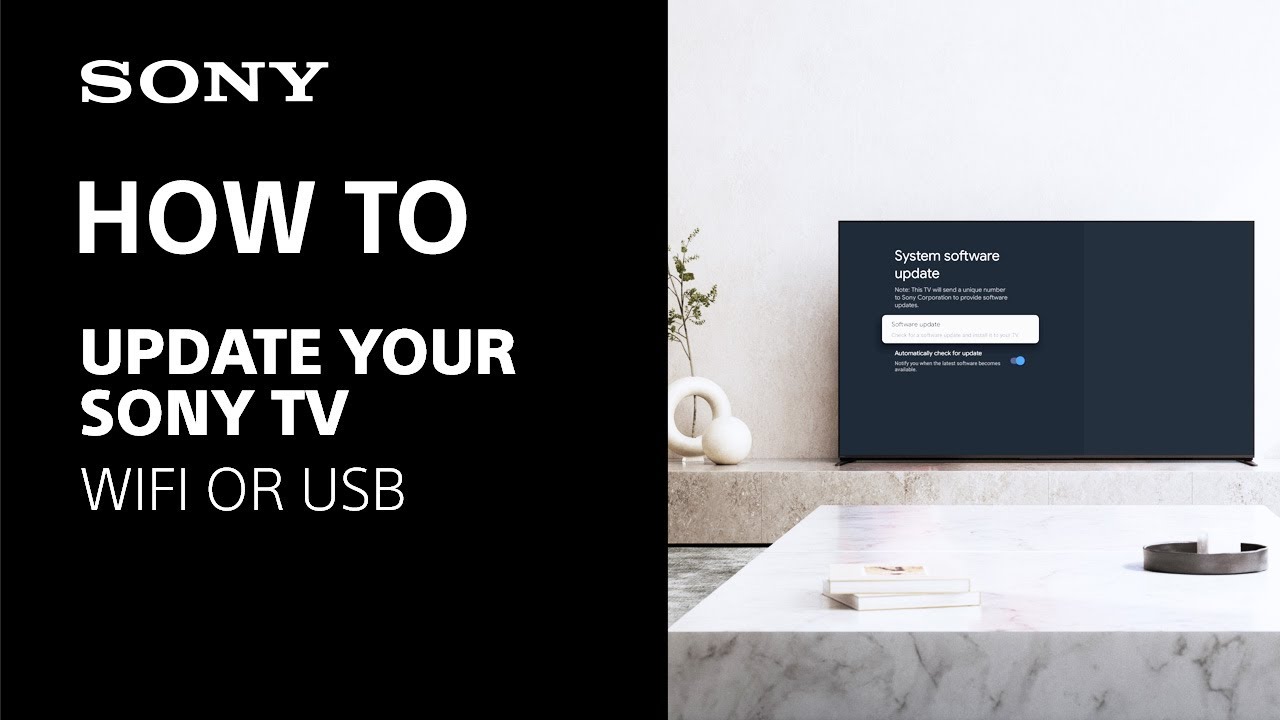
So if your Sony TV is connected to the internet, then normally it will prompt you when there's an update available and you can just press okay and update from that screen.
If you want to check if there's an update available, you can always do that by navigating to: Settings – System – About – Update.
Here you can also check the ‘automatically check for updates’ option if it's not already checked, and this will ensure that your TV prompts you when there's an update available.
If for any reason your TV's not connected to the internet, then you can still update by using a USB stick.
To update in this way, the first thing we'll need is your TV's model number. You can find this on the back of your TV. Just look for the label.
Then you'll need to head to the Sony Support website, and in the search bar you can type your TV's model number and you'll be taken directly to your TV's model page.
From here, you can access the download section and find the latest available firmware for your TV.
Then hit the download button and check through the terms and conditions. Once you press the download button on this page, the update will begin to download.
Once the download is complete, it will be placed in the downloads folder on your computer. This will be a zip file. You'll want to extract the data from this file normally by double clicking or right clicking and selecting extract.
Depending on the kind of computer that you have, this will place a regular folder alongside the zip file, and inside this folder will be three files that we need.
At this point, you can insert the USB stick into your computer and copy these three files over onto the USB. No need to put them in any folders or anything like that. Just directly onto the USB stick is perfect.
Now that we've got the files that we need on your USB stick, we want to head over to your Sony TV.
First press and hold the power button on your remote for about five seconds. This will bring up a prompt that will let you fully restart your TV.
Once the TV's restarted, you can insert the USB stick into any of the USB ports available on your TV.
Once you've inserted the USB stick with the files on it, your TV will begin updating. This could take a couple minutes depending on your TV's model. Might restart by itself. Just let it do its thing.
The important thing to remember at this point is not to unplug the TV from the power supply and don't take out the USB stick.
Once the update is complete and you're in control of the TV again, you can take out the USB stick without any issues.
And that's it. You're on the latest firmware.
But that's all the time we have for this video. If you have any more questions about your Sony TV, you can always visit the Sony Support website for more information.
Thank you for watching.
Register your product
Get access to all information, keep your product up to date and enjoy great deals
Sony Community
Visit our Community and share your experiences and solutions with other Sony customers
Contact support
Contact your Sony Support team
Repair, Warranty & Spare Parts
Book, track or maybe even avoid a repair
Support by Sony (Mobile App)
Never miss an update again! Find information and receive instant notifications about your product

