Applicable Model
This information is for the following model(s):
- ILME-FX2
- ILME-FX2B
About This Download
What to keep in Mind Before Performing the Update
- You can download the software update using the Creators' App available in the App Store and Google Play.
Benefits and Improvements
- Fixes an issue where recording in DCI 4K at 24fps and shooting at 48fps results in normal-speed recording at 24fps when the APS-C S35 Shooting setting is Off or when a full-frame lens is attached and set to Auto
Note: APS-C S35 Shooting is locked to On when selecting a shooting frame rate of 48fps. - Fixes an issue where the power may turn off when a mount adapter is attached despite having sufficient battery charge
File Info
- Name: BODYDATA.DAT
- Version: 1.01
- Size: 891 221 472 bytes
- Release Date: 05-11-2025
Preparation
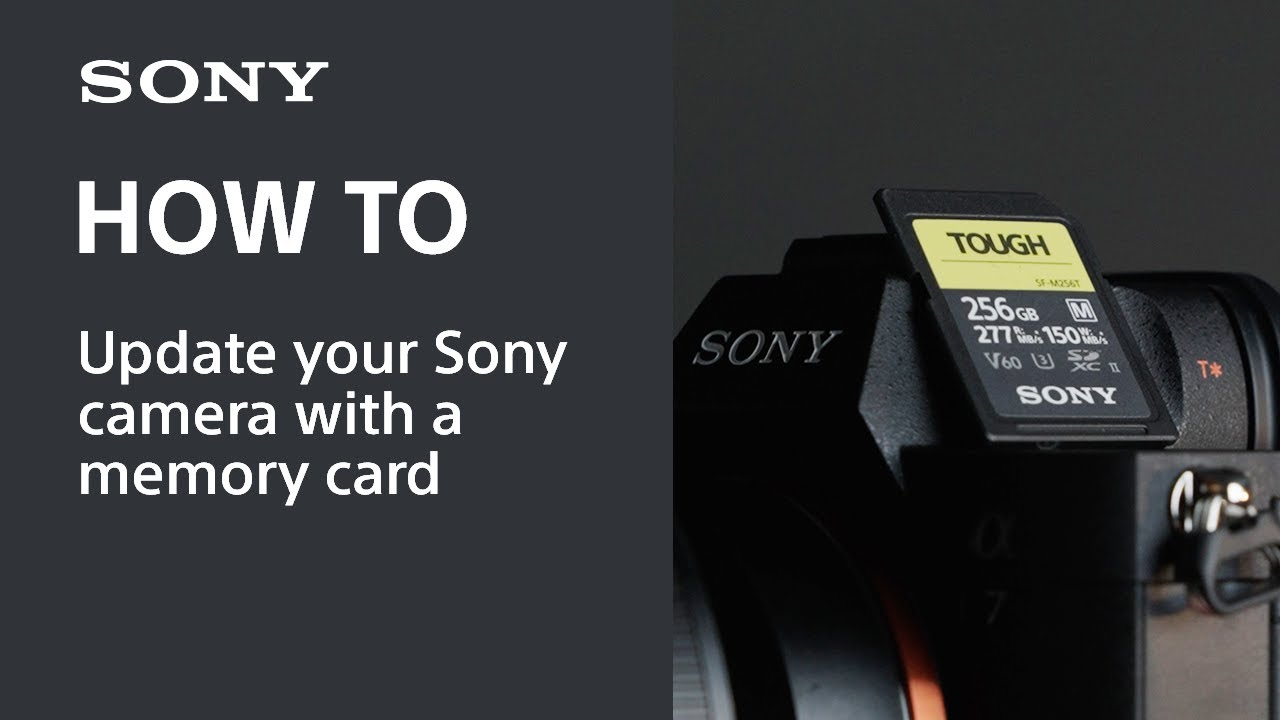
How to Update Your Sony Camera With a Memory Card (SD or CFexpress)
Check the System Software Version
Follow the instructions below to check the system software version:
- Select Menu → Setup → Setup Option → Version → Body.
- The system software version will be displayed.
Notes:
- If the system software version is Ver. 1.01, the update is not required.
- If the Date/Time setting screen appears when you turn on your camera, be sure to set the date and/or time to the correct values.
Saving the System Software Data to a Memory Card
IMPORTANT: Make sure there is only one BODYDATA.DAT file on the memory card.
- Click the Download button.
- After reading the disclaimer, click Download.
- Save the file to your computer.
- Insert the formatted memory card into the computer.
- Save the BODYDATA.DAT file in the root directory of the memory card. Do not change the file name.
Notes:
- Please format the memory card in advance using this camera.
- Before formatting, copy the data to a computer or other device.
- Once you format the memory card, all the data recorded on it will be deleted and cannot be restored.
- Please refer to the instruction manual of the camera for compatible memory cards.
Other Hardware
- Power source for the camera: Use a fully charged rechargeable battery pack (NP-FZ100).
Note: The update can only be performed when the battery power level is 51% or more. We recommend you use a fully charged battery.
Updating the System Software Version
Important Notice
- Use a fully charged rechargeable battery pack (NP-FZ100).
- Do not remove the battery during the update as the sudden loss of power may render the camera inoperable.
- It may not be possible to update if the camera temperature is high. Please wait to update until after the temperature drops.
Step 1: Update the System Software
- Insert the memory card that contains the saved system software data into slot 1 of the camera. Only slot 1 will recognize the system software data.
- Select Menu → Setup → Setup Option → Version → Body.
- Select Software Update.
- Select Execute on the system software update confirmation screen. The software version update will start.
On-screen message:- Update? X.XX → Y.YY
- X.XX: Current version number
- Y.YY: Newest version number
- Do not remove the battery or memory card during the update.
- After confirming the details, you may click Execute.
- Please scroll down the screen as necessary to view the full text.
- Update? X.XX → Y.YY
- When the system software update starts, a black screen will appear. The access lamp will flash 1 time → 3 times → 5 times, and the recording lamp and rec (recording) button will flash 1 time → 2 times → 3 times depending on the progress of the update. The update will take approximately 6 minutes to complete.
Notes:- If the system software data copy is incorrect, the message “The target model for the update file is incorrect” will be displayed on the camera monitor.
- If the access lamp repeats 5 long blinks (0.5-second cycle) and 6 short blinks (0.25-second cycle), or 7 long blinks (0.5-second cycle) and 7 short blinks (0.25-second cycle), the system software may have been incorrectly copied to the memory card.
- In this case, remove the battery and memory card from the camera, prepare another memory card, and then start over from the Saving the System Software Data to a Memory Card section of this article.
- When the update is complete, the camera will automatically restart.
After restarting, when the “Body update complete” screen appears, press OK.
Step 2: Confirm the System Software Version of Your Camera
- Select Menu → Setup → Setup Option → Version → Body.
- The system software version will be displayed.
The update was successful if the screen shows Ver. 1.01.
ILME-FX2 System Software (Firmware) Update Ver. 1.01
Register your product
Get access to all information, keep your product up to date and enjoy great deals
Sony Community
Visit our Community and share your experiences and solutions with other Sony customers
Contact support
Contact your Sony Support team
Repair, Warranty & Spare Parts
Book, track or maybe even avoid a repair
Support by Sony (Mobile App)
Never miss an update again! Find information and receive instant notifications about your product

