Living room setup with a TV on the wall displaying a colourful scene, with a soundbar beneath it. Living room setup with a TV on the wall displaying a colourful scene, with a soundbar beneath it.

TVs & Home Theatre

Accessibility for all, whatever your needs

Technology makes it easier to see, hear, and use. Incorporating accessibility in its design, Sony’s TV enhances the user experience regardless of age, ability or environment.

Accessibility to assist your senses
Three icons next to each other, on the left an eye, in the middle an ear and on the right a hand Three icons next to each other, on the left an eye, in the middle an ear and on the right a hand

Vision Assist

Use voice control, hear what’s on screen, or adjust the display.
The feature availability depends on model, region and country.

Talkback and text magnification functions
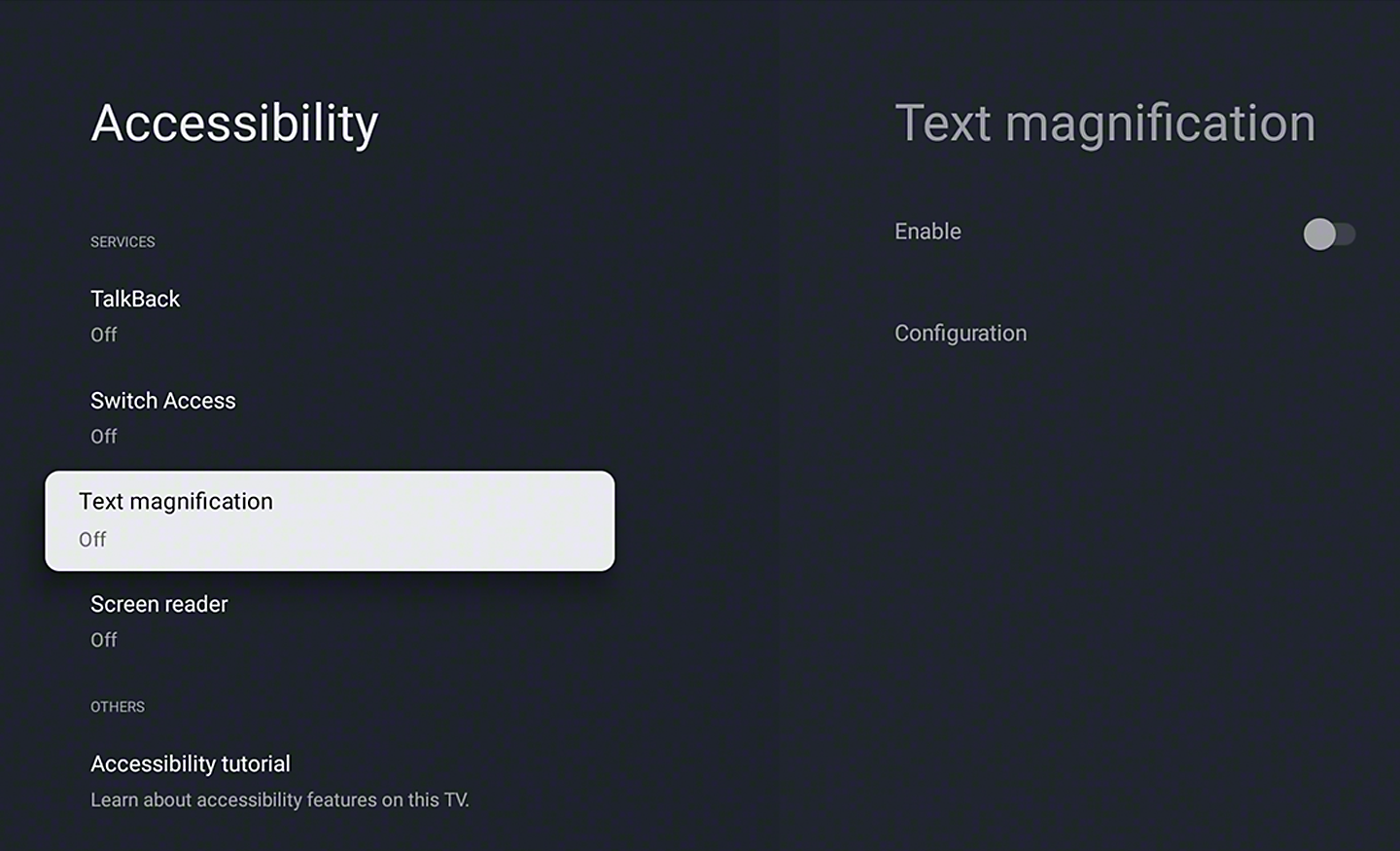
Talkback0 allows you to check the TV programme guide or change TV settings without looking at the screen, while Text Magnification1 displays an enlarged version of the focused text at the bottom or top of the screen2.Text Scaling3 enlarges not only specific text but all on-screen text by up to 130%.
Four images of a TV showing how to activate text magnification and TalkBack features in the accessibility settings.

Tactile dots

To make setup easier, we include tactile dots on the back panel to indicate the locations of the HDMI terminals on our TVs and home theatre products. Additionally, notches and tactile dots inside the packaging guide users to a QR code,0. which links to the BRAVIA Connect app with screen reader support.1
Two way image split of tactile markers indicating input and output ports, and packaging with tactile markers framing a QR code

Colour inversion and colour correction

The Color Inversion function inverts the brightness of colours so that bright areas become dark and dark areas become bright. If the text is easier to read with a dark or bright background colour, you can use Color Inversion to change the background colour. This feature can be turned on or off as needed. Colour Correction0 function allows on-screen colours to be adjusted to support viewers with various types of colour vision deficiencies, including Deuteranomaly (red–green), Protanomaly (red–green), and Tritanomaly (blue–yellow).
 Split screen of two images, the left with standard colours setup and the right with colour inversion feature on

Accessibility shortcut

Accessibility Shortcut allows you to quickly and easily turn your accessibility features on or off. When the shortcut is enabled, you can launch the accessibility features by pressing and holding the mute button on your remote, assign frequently used functions, and toggle them on or off.
A close-up of a remote control with the mute button highlighted and a TV showing accessibility shortcut settings in the background.

Hearing Assistance

Adjust the volume and sound, or turn audio into text.

The feature availability depends on model, region and country.

Crystal clear voice. Precise dialogue.

No more muffled voices. Our new Voice Zoom 3™ recognises human dialogue through AI machine learning and amplifies or reduces its volume so even small dialogue sounds loud and clear. Works with our home theatre products too.0
TV screen showing a newscaster speaking into a microphone, with visual sound indicators

Wireless handy TV speaker

The optional SRS-LSR200 wireless speaker helps make voices clearer through the Voice Zoom function. A large on/off switch, easy-to-turn volume dial and a handle ensure accessible use and portability0.
Angled image of a SRS-LRS200

Mono audio0

Merge left and right channels into one output, so you can hear every detail through just one ear when using headphones.
Split-screen image comparing mono audio settings. With mono audio off, left and right sounds play separately in each ear. With mono audio on, both channels are combined and played evenly through both headphones.

Single view, simultaneous sound0

Our TV with simultaneous sound output lets you listen to a show on your headphones while your partner listens to the same show through the TV speakers. You can also change the volume using Bluetooth devices separately. Using Sony’s headphone, you can smoothly switch Bluetooth® connection from other devices.


An older adult wearing headphones and a child sitting beside them watch an action scene on a TV screen. Blue sound waves radiate from the screen toward the listener, illustrating shared or simultaneous audio playback so both viewers experience the same sound from the content.

Action Assist

Select the operation method, including shortcuts or voice control.
The feature availability depends on model, region and country.

Notification timeout function

Notification Timeout can be used to extend the display time of a notification.  
Four images of a TV showing how to change the timeout options in the accessibility settings.

Hands-free operation, including video searches

Users of BRAVIA with Google Assistant built-in can simply say "OK Google" and say a task, for example, searching for a YouTube video, and it will be done. Voice commands can also be used to operate the BRAVIA itself, such as turning it on or off or changing the volume01234.
A TV in a living room showing different search and menu navigation options for applications and TV shows.

Watch this video to review BRAVIA™ accessibility information